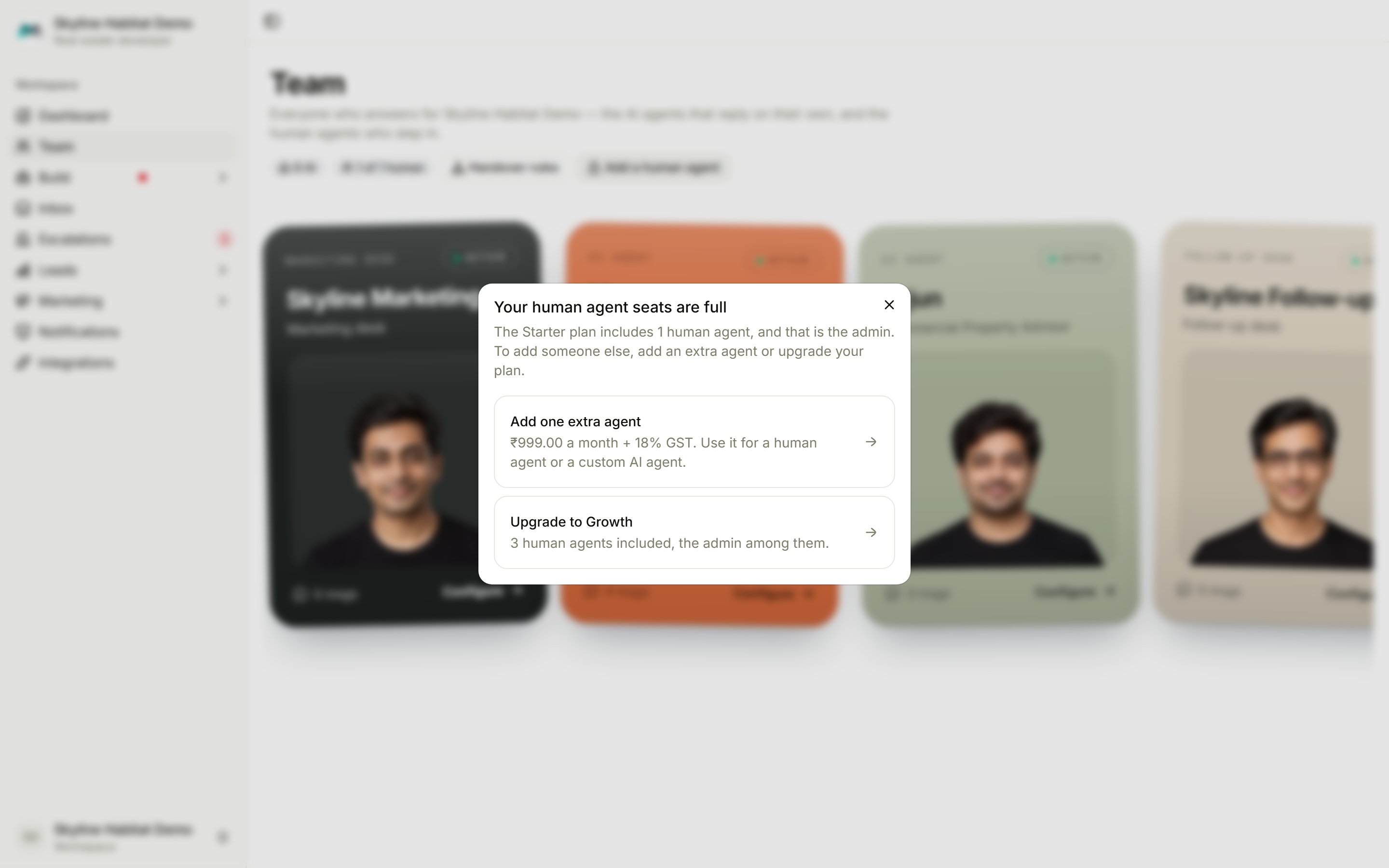
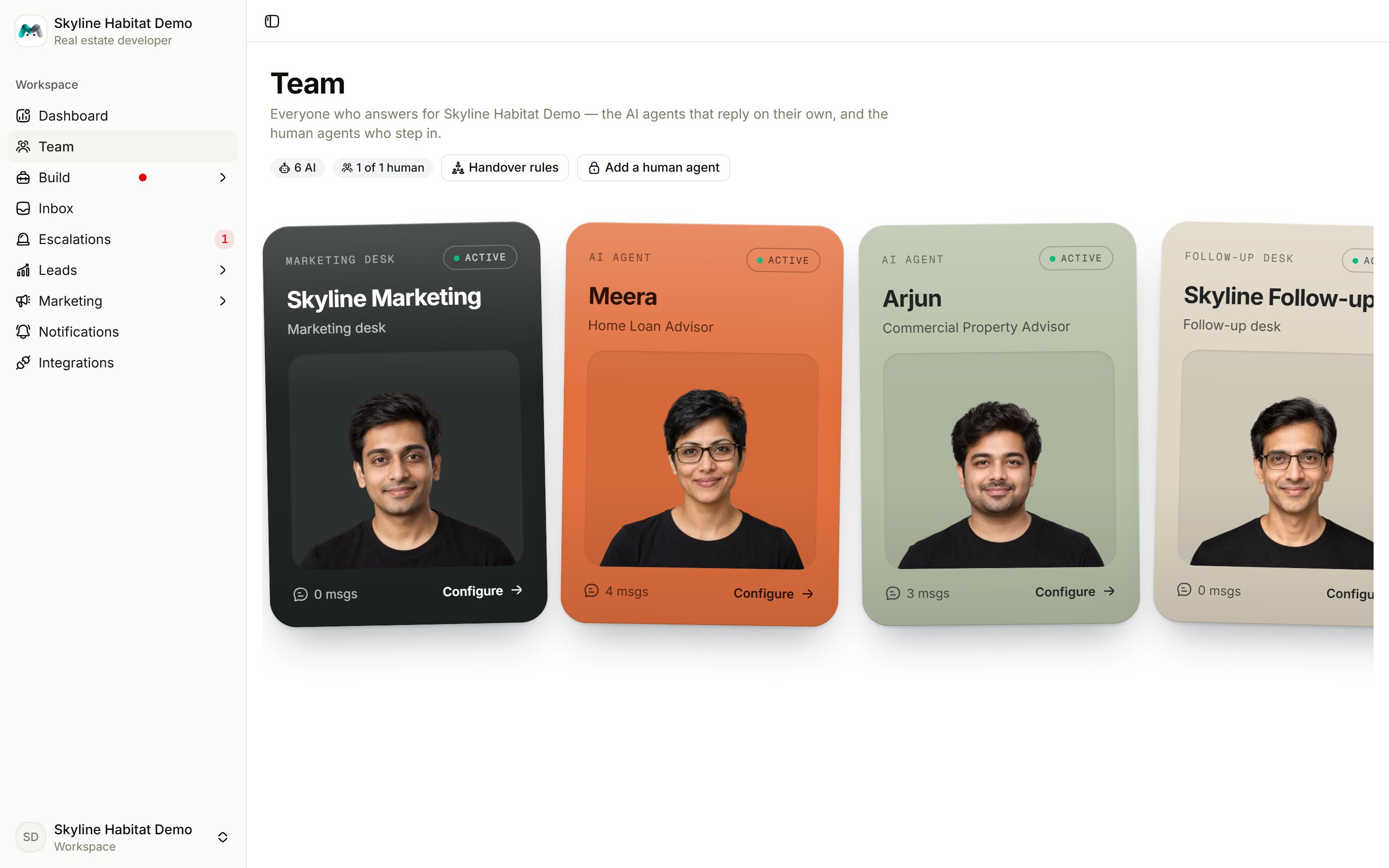
Add a human agent
Choose Add a human agent and fill in:
Setting someone to Inactive removes them from the list you can reply as, stops their login working, and frees their seat on your plan.
Give them a login
From the card’s menu, choose Generate login. The email (or username) and password are shown once. Choose Copy all sign-in details and pass them on. A team member can use the whole console, and their replies are signed with their own name. They cannot change the workspace password, issue logins or change the plan. From the same menu you can Reset password (which also turns off their two-factor) or Revoke login.When seats are full
If your plan’s human seats are used up, you’ll see Your human agent seats are full. Add one extra seat, or upgrade your plan.