
Orders and other records
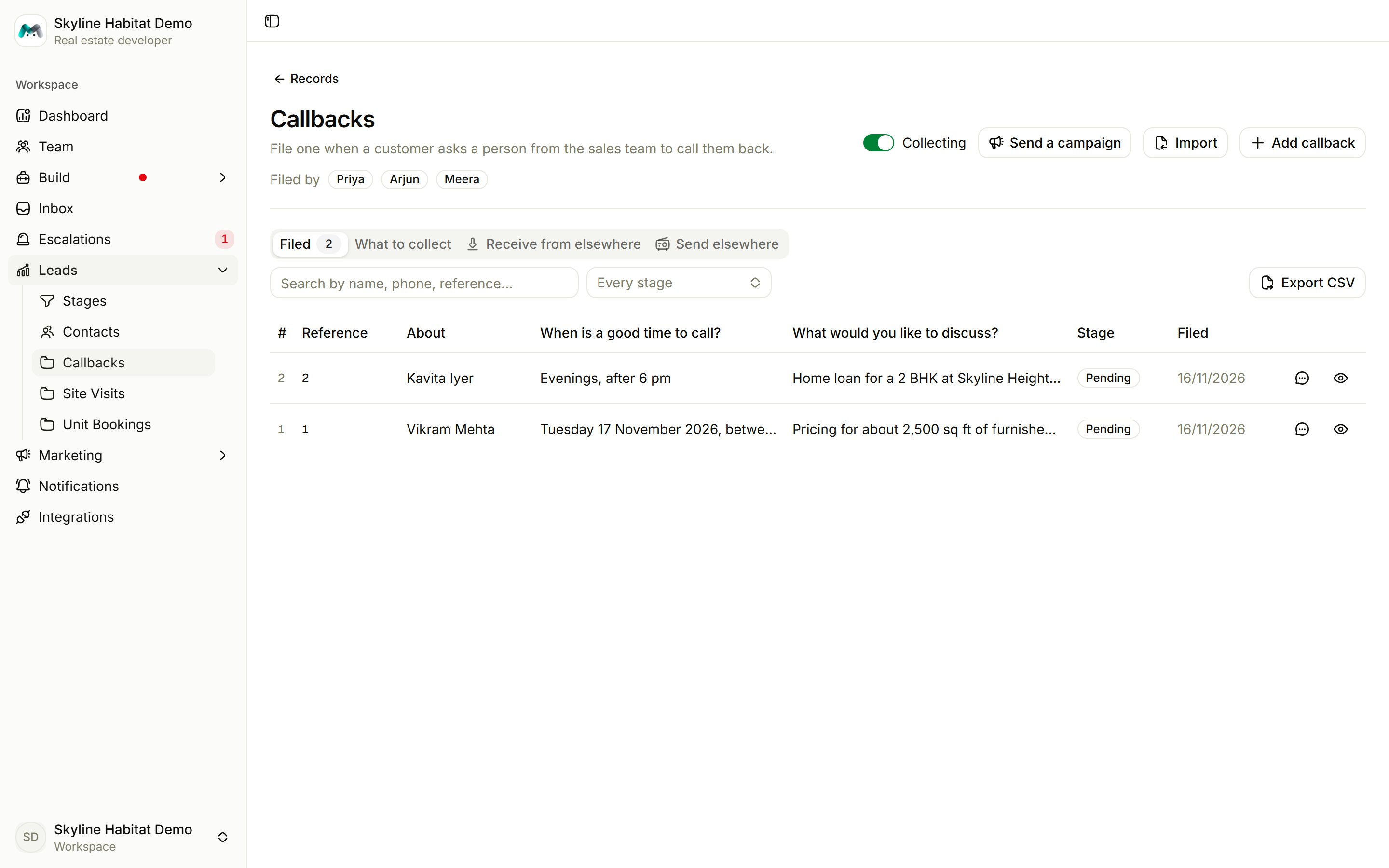
Each record book has its own entry under Leads in the sidebar, for example Orders, Site Visits, Unit Bookings or Callbacks.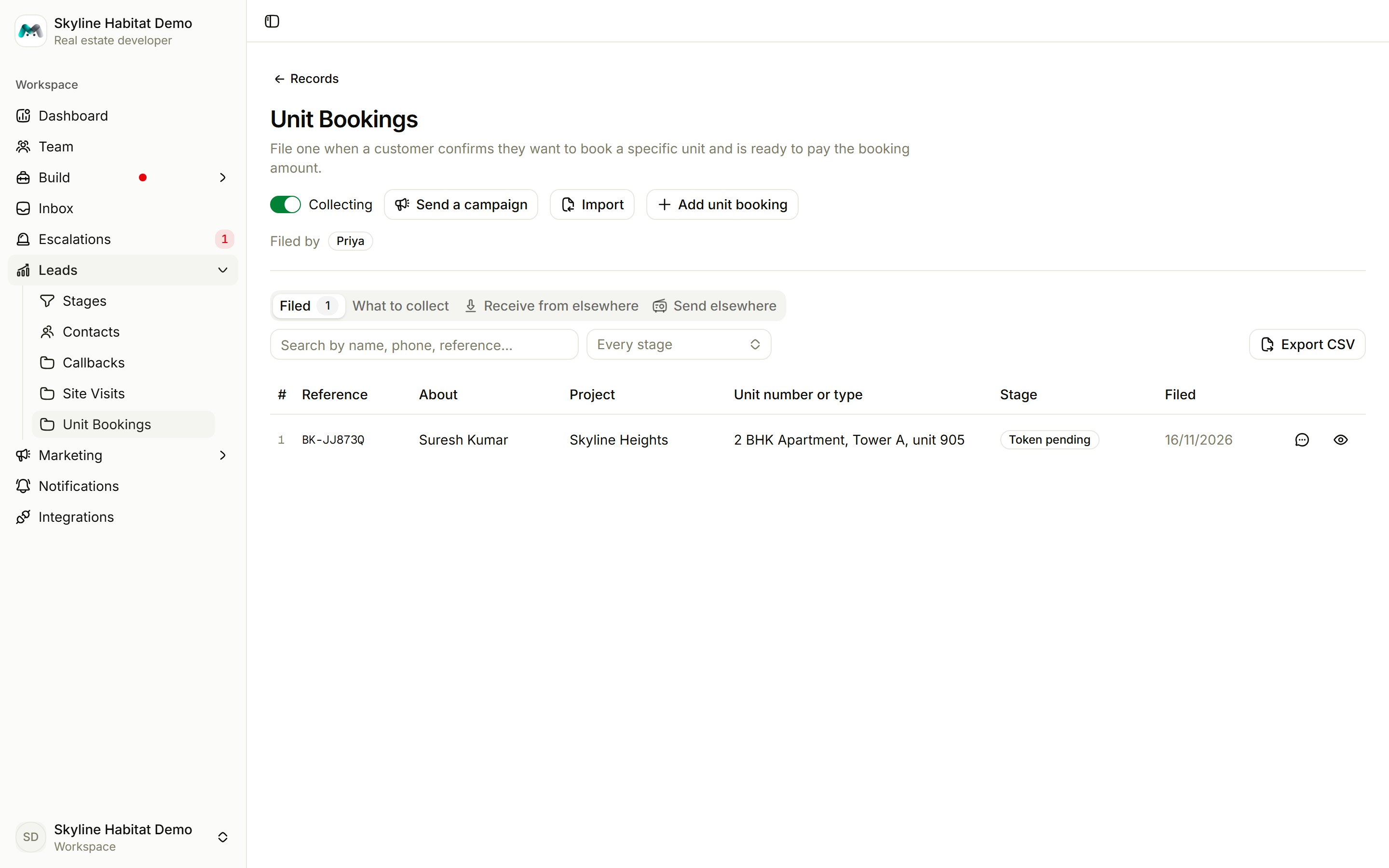
- search by name, phone or reference, and filter by stage;
- open a record to read every detail and Move it to the next stage;
- Open conversation to see how it was collected;
- Add a record by hand, Import a CSV or Excel file, or Export CSV.
Orders is the book for things sold from the catalogue. If the Orders page says the workspace “does not have its Orders book yet”, use Open Record books and create it there.
Payments with Razorpay
Once you connect Razorpay, agents and your team can send payment links, and Payments appears under Leads.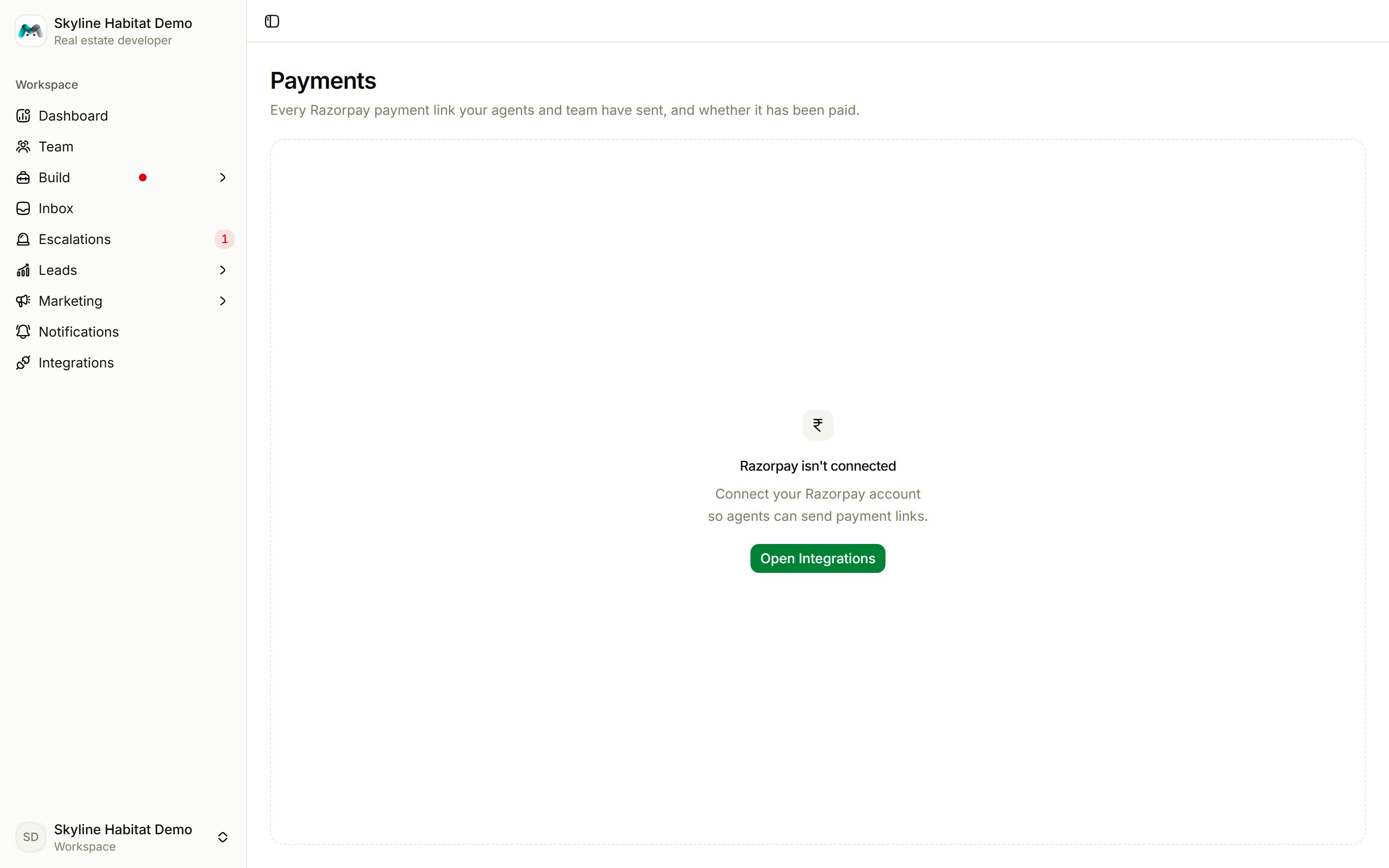
Send a payment link
- Choose New payment link, or Send payment link on a record.
- Enter the Amount (₹), or an Order reference. With a reference, you can leave the amount blank to charge the order’s total.
- Fill in What it is for and the customer’s name, phone and email.
- Choose Create link. It is copied to your clipboard. Razorpay can also text and email it to the customer.