
The sidebar
A section opens on its own when you are on one of its pages. A closed section shows a red dot when something inside it needs your attention. For example, Build shows one when the knowledge base has open knowledge gaps.
The profile menu
At the bottom of the sidebar, click your workspace name to open:- Workspace settings: password, two-factor, message limits, webhook, AI assistant connector, theme. See Settings.
- Billing: plan, wallet and message usage. See Billing.
- Support: tickets with the Magic Agent team. See Support.
- Theme: Light, Dark or System.
- Log out.
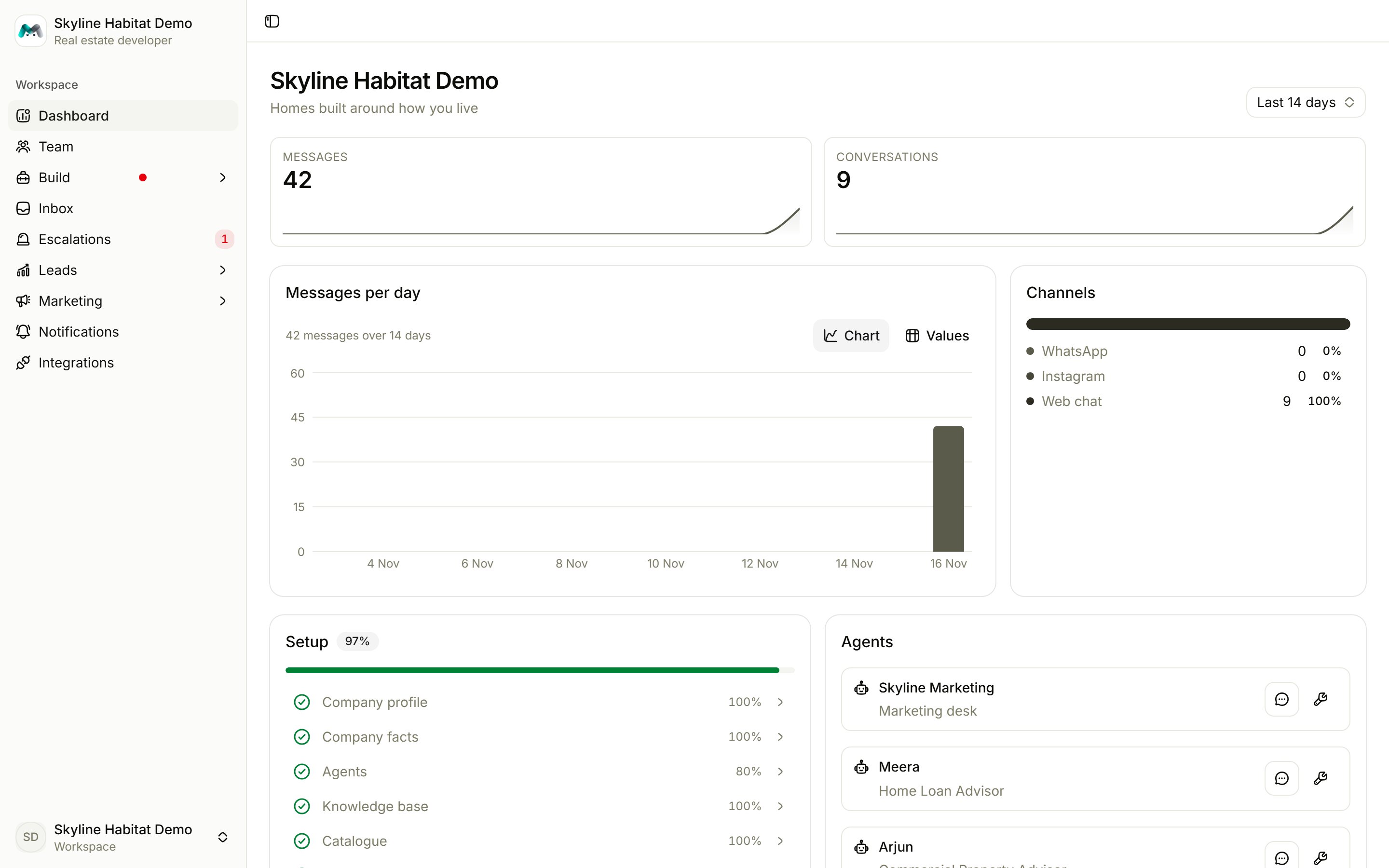
The dashboard
- Period: switch between the last 7, 14 or 30 days in the top right.
- Messages and Conversations: totals for the period, compared with the period before.
- Messages per day: switch between Chart and Values.
- Channels: how conversations split across WhatsApp, Instagram, RCS, Telegram and web chat.
- Setup: your progress through the six setup steps. Click any step to open it.
- Agents: each agent with two buttons: test it in the playground, or configure it.